
Nesting and Material Calculator PowerScript for Adobe Illustrator
- Pay once, no subscription
- Free updates
- Windows and Mac, Adobe Illustrator
- Runs inside the PowerScripts panel
Nest your artwork to get the most out of every sheet, roll or board, and work out exactly how much material a job needs for quoting and planning. Nesting has four ways to nest:
- Two box (rectangle) methods
- Best Fit: packs pieces tightly as rectangles.
- Easy Cut: lays rectangles out in straight-line cuts, ready for a guillotine or panel saw.
- Two true-shape engines (Shape Nest), which fit pieces together by their real outlines:
- Tight: packs shapes as closely as possible.
- Standard: handles the complex jobs: nesting inside your own shapes, around fixed artwork, and filling holes and closed-in gaps.
Auto picks the right shape engine for each job, or run Both and keep the best result.
New in the 2026 version
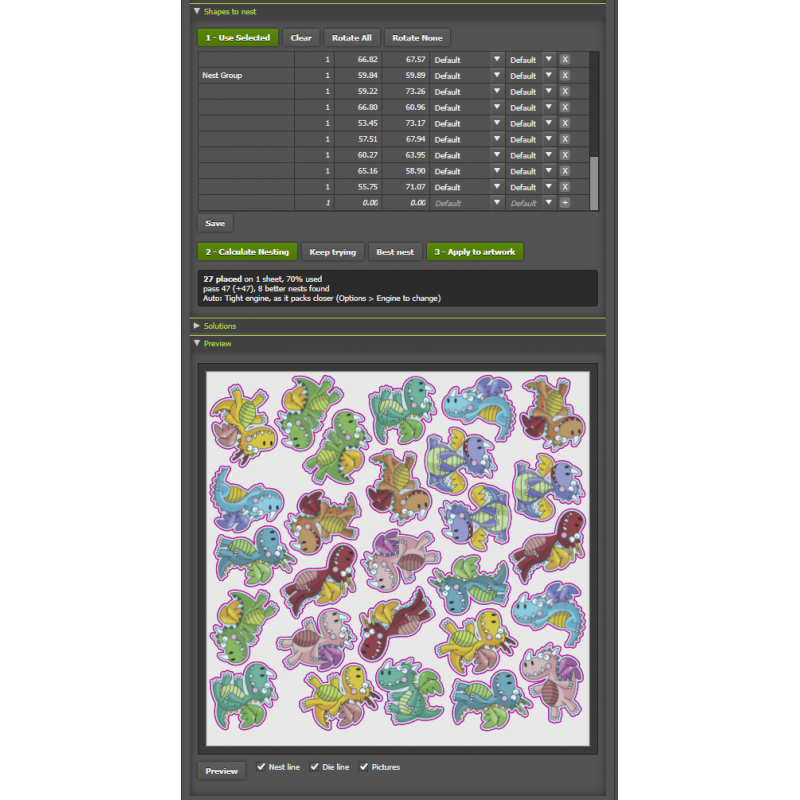
- Shape Nest: true-shape nesting for stickers, lettering, signs, CNC and laser cutting.
- Tight engine: packs shapes closer together (lettering about a sixth shorter in our tests) and usually finds a layout faster for simple CNC and Laser cut shapes.
- Auto and Both: Auto picks the best engine for each job and tells you why; Both runs the two at once and lists the best layouts of either.
- Die lines: stickers and graphics stay with their die line (CutContour and other cut colours), even when the artwork is spread over many layers.
- Space between shapes and from the edge: set the gap, the distance from the sheet edge, and a bleed.
- Small shapes inside larger ones: fill the middle of an O, a frame, or the bowl of a G.
- Nest into your own shapes: nest inside shapes you draw, around locked artwork.
- Fill a sheet: as many copies of one piece as fit
- Fill from any edge or corner: for rolls, laser beds and CNC tables.
- Clipping masks and tools: clipping masks added automatically, plus Create Nest Path for fine control of fitting, Create Die Line and Create Clipping Mask.
- Keep trying and Best nest: search for a tighter layout for up to 5 minutes, then choose from a list of the best layouts.
Typical uses
- Lay out artwork for printing, vinyl cutting, stickers and labels, and keep waste down.
- Nest shapes for CNC routers and laser cutters by their real outline.
- Work out media usage for costing and quotes.
- Fill a sheet with as many copies of a design as will fit.
Quick Nesting: one button
- Nest the selected artwork on the artboard in one click.
- Choose the method:
- Shape Nest, stickers and graphics: keeps the artwork with its die line.
- Shape Nest, CNC and laser cut: nests every shape by its own outline.
- Best Fit or Easy Cut (rectangles).
- Allow rotations and set the gap.
- Resize the artboard to fit: keep it, expand the width or expand the height.
Advanced Nesting: more options and control
For every method
- Use the selected artwork, or type in sizes and quantities (handy for costing before there’s any artwork).
- Set the quantity of each print; the copies are made for you.
- Allow rotations print by print.
- Work out several solutions, preview them, and pick the one you want.
- Choose your units.
Box nesting (Best Fit, Easy Cut)
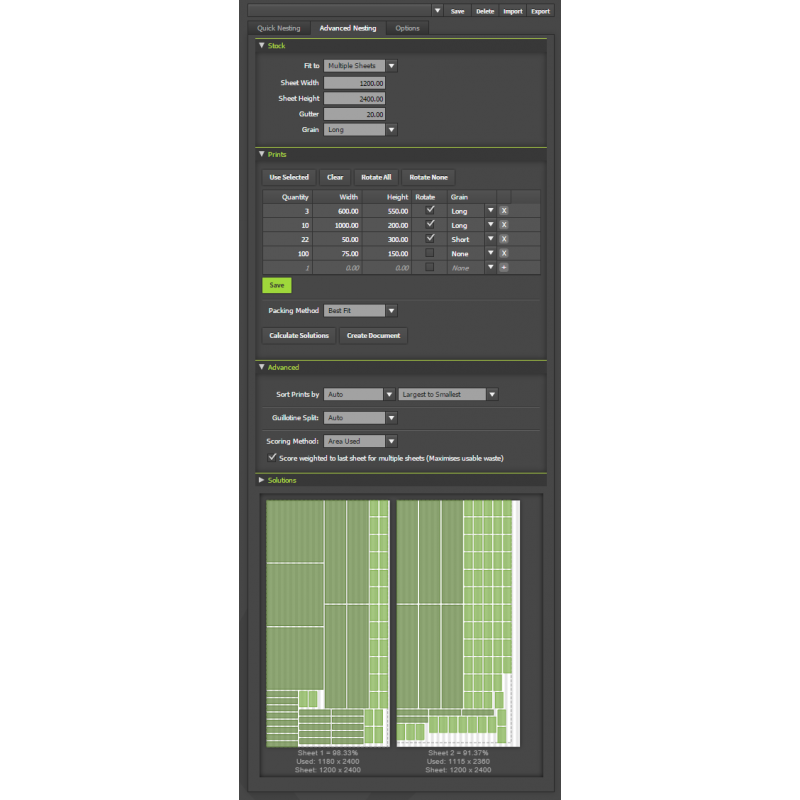
- Five sheet layouts:
- Single sheet: fit the prints on one sheet.
- Multiple sheets: adds sheets until everything fits.
- Artboards: use the document’s artboards as the sheets.
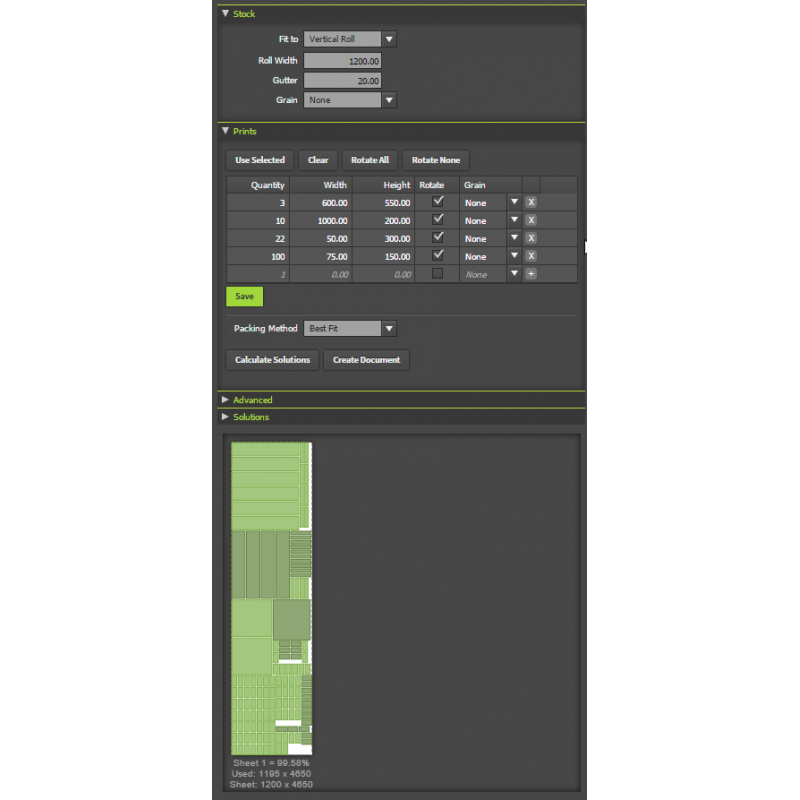
- Vertical roll / Horizontal roll: the roll grows as far as it needs to.
- Grain direction (long or short), for fluted board and wood.
- Pre-sorting, nesting and scoring options, including scoring weighted to the last sheet to keep the leftover piece usable.
- Turn a solution into a template document with sizes, ready to print as a cutting spec.
- Add borders round the prints, annotate copies.
Shape Nest (true shape)
- Engine: Auto, Tight, Standard or use Both for the best fit.
- Nest onto: the artboard, a fixed sheet size, or your own selected shapes; locked artwork stays put and gets nested around.
- Quantities or fill: use the quantities from the list, or fill the sheet with as many of the first print as fit.
- Fill from: any of 8 edge-and-corner starting points.
- Spacing: the gap between shapes, the distance from the edge, and bleed.
- Turning: 90°, every 45°, 180° only, or none (per print or for all).
- Outline options: nest by the nest path, die line, shape outline, die line plus visible artwork, or bounding box; include strokes; expand or smooth the outline.
- Inside other shapes: place small shapes inside larger ones (holes and closed-in gaps).
- Die lines: keep artwork under each die line together; group artwork with its die line for a much faster Apply.
- Clipping masks: off, automatic, or always.
- After Apply: die lines go to their own layer and nest paths to a non-printing layer.
- Searching: Keep trying, Best nest (up to 5 minutes), and a list of the best layouts to choose from.
- Preview: with your artwork’s pictures, before you apply.
- Apply: shows its progress and can be stopped.
Create and customise cut and nest paths
Shape Nest fits pieces together by an outline. You can see that outline, change it and make your own, so you control exactly how pieces nest and how they’re cut.
- Nest paths: the line Shape Nest fits each piece by.
- Create Nest Path draws it for the selected pieces (a thin cyan “NestPath” line on top of the artwork). Edit it like any path to change how that piece nests.
- A simple nest path round a complicated piece, like a bumpy die-cut sticker or detailed lettering, makes nesting much faster: Shape Nest only has to fit the simple shape.
- Nest paths are used first whenever a piece has one, and can go to a non-printing layer after Apply.
- Die lines (cut paths):
- Create Die Line makes a cut path round the selected artwork, any distance outside or inside it (for example 3 mm out for a sticker border), with rounded corners. Parts that sit close together are joined into one die line.
- Die lines use your cut colour (CutContour, CutPath or your own spot names) and can go to their own layer after Apply, ready for the cutter.
- Clipping masks: Create Clipping Mask trims artwork to its die line plus bleed. Shape Nest can also add masks for you after nesting (off, automatic or always).
- Shape the outline:
- Expand: grow every outline (round corners) so pieces that sit close together, like halftone dots or the letters of a word, become one shape.
- Smooth: round off bumps and dents for fewer points and faster nests.
- Include strokes: count strokes in the outline.
- Choose what each piece nests by:
- Auto (its nest path, then its die line, then its outline)
- die line only
- die line plus visible artwork
- each shape’s own outline (CNC, laser)
- the visible box
- the bounding box
- Check it before you apply: the preview shows each piece’s nest line (cyan) and die line (magenta) over the pictures of your artwork.
Related Products
Printers Script Package (includes 33 PowerScripts) for Adobe Illustrator
A complete package of all PowerScripts for Printers and DesignersIncludes the following scriptsGener..
$395.00 USD $806.00 USD Ex Tax: $395.00 USD
Production Script Package (includes 24 PowerScripts) for Adobe Illustrator
A comprehensive package of scripts for Designers and Prepress professionals.Includes the follow..
$210.00 USD $456.00 USD Ex Tax: $210.00 USD